Technical Implementation of Email Search by Subject Feature in a Next.js Application
Author: Nazmus Ashrafi
Date: December 6, 2025
Feature: Client-Side Email Conversation Search by Subject
Complexity Level: Intermediate
Table of Contents
- Executive Summary
- Feature Overview
- Architectural Decisions
- Component Architecture
- Detailed Implementation
- Code Changes Analysis
- Design Patterns Applied
- Performance Considerations
- Future Enhancements
- Lessons Learned
Executive Summary
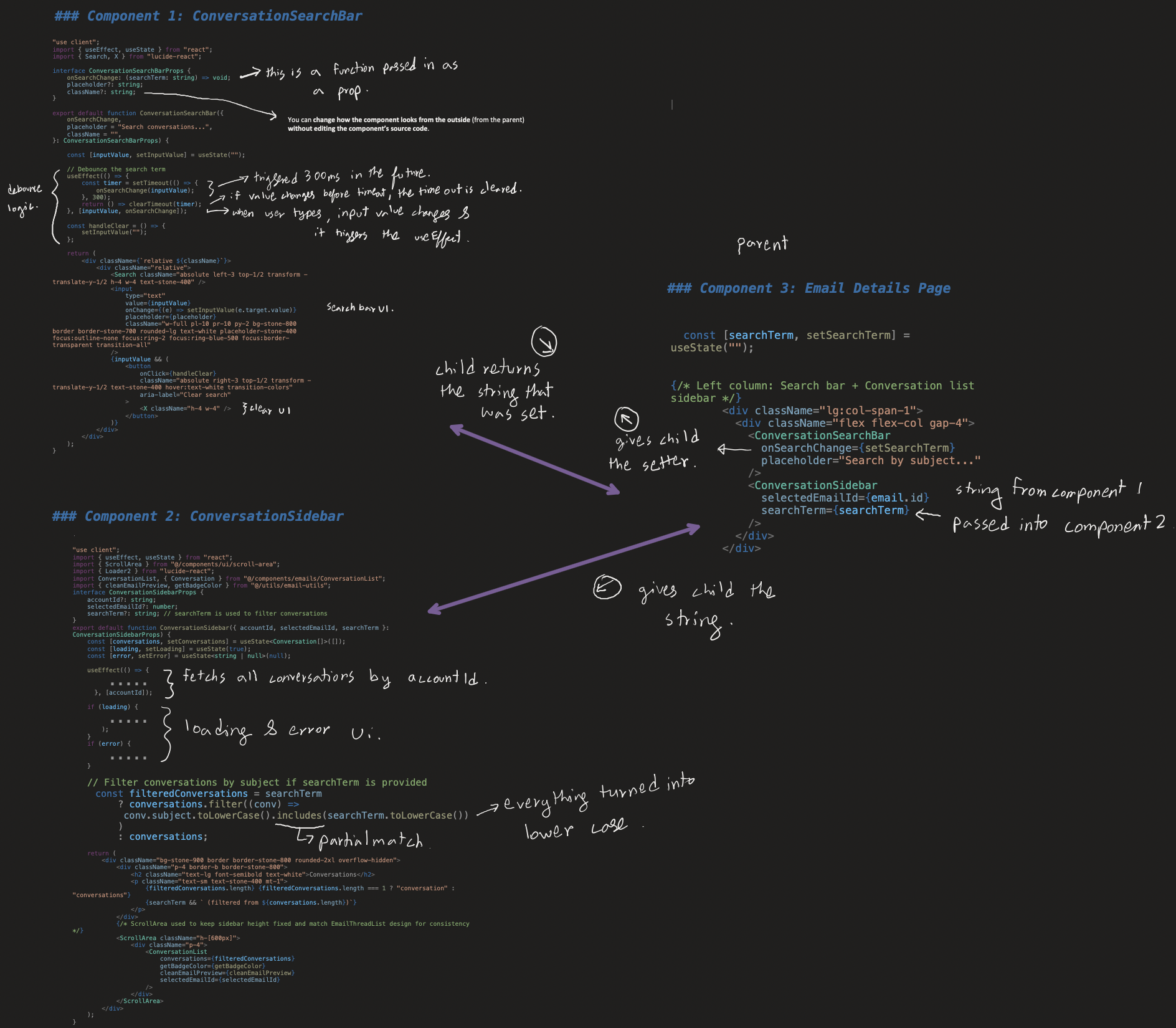
In this article I will provide a comprehensive technical walkthrough of implementing a search-by-subject feature for the AI Email Coach application. The implementation takes careful consideration of React best practices, emphasizing component reusability, separation of concerns, and optimal user experience through debounced input handling.
The feature allows users to filter email conversations in real-time by typing partial or complete subject text into a search bar. The implementation is entirely client-side, leveraging React's state management and component composition patterns to create a maintainable and scalable solution.
Key Achievements:
- Created a reusable, independent search component
- Implemented debounced search to optimize performance
- Maintained clean separation between UI and business logic
- Converted a Server Component to a Client Component while preserving functionality
- Enhanced user experience with real-time filtering and visual feedback
Feature Overview
User Story
As a user, I want to search through my email conversations by subject so that I can quickly find specific emails without scrolling through the entire list.
Functional Requirements
- Search Input: Users can type text into a search bar positioned above the conversation list
- Real-Time Filtering: Conversations filter as the user types (with debouncing)
- Case-Insensitive Matching: Search should match regardless of letter casing
- Clear Functionality: Users can clear the search with a single click
- Visual Feedback: Display the number of filtered results vs. total conversations
- Responsive Design: Search bar should integrate seamlessly with existing UI
Technical Requirements
- Component Reusability: Search component must be usable across different pages
- Performance: Debounce input to prevent excessive re-renders
- Type Safety: Full TypeScript support with proper interfaces
- Maintainability: Clean separation of concerns between components
- Accessibility: Proper ARIA labels and keyboard navigation support
Architectural Decisions
Decision 1: Independent Search Component vs. Integrated Component
Decision: Create ConversationSearchBar as an independent, reusable component separate from ConversationSidebar.
Rationale:
- Single Responsibility Principle: The search bar's job is to capture and emit user input, not to understand conversations or filtering logic
- Reusability: An independent component can be used in multiple contexts (detail page, inbox page, future features)
- Testability: Easier to write unit tests for a focused component
- Maintainability: Changes to search UI don't require modifying the sidebar component
- Scalability: As search features expand (filters, advanced queries), the component can grow without bloating the sidebar
Alternative Considered: Embedding search directly in ConversationSidebar
- Rejected because: This would violate SRP, reduce reusability, and make the sidebar component overly complex
Decision 2: Client-Side Filtering vs. Server-Side Filtering
Decision: Implement filtering on the client-side within the ConversationSidebar component.
Rationale:
- Performance: Conversations are already loaded; filtering locally is instantaneous
- Reduced Server Load: No additional API calls for each keystroke
- Simpler Implementation: No need to modify backend endpoints initially
- Better UX: Immediate feedback without network latency
- Appropriate Scale: Current conversation counts are manageable for client-side filtering
Trade-offs:
- Limitation: Won't scale well if users have thousands of conversations ⚠️
- Future Migration Path: Can easily switch to server-side filtering by modifying the data fetching logic in
ConversationSidebarwithout changing the search bar component. Maybe later we will need to implement server-side filtering (asking the server for a filtered list via an API request).
Decision 3: Debounced Input vs. Immediate Filtering
Debouncing means delaying a function call until the user stops typing for a short period of time.
Decision: Implement a 300ms debounce delay between user input and filter execution.
Rationale:
- Performance Optimization: Prevents re-rendering on every keystroke
- User Experience: 300ms is imperceptible to users but significantly reduces computational overhead
- React Best Practice: Debouncing is a standard pattern for search inputs
- Battery/CPU Efficiency: Especially important for mobile devices
Implementation Details:
- Used
useEffectwith cleanup to implement debouncing - Timer resets on each input change
- Only triggers
onSearchChangecallback after user stops typing for 300ms
Decision 4: Server Component to Client Component Conversion
Decision: Convert /emails/[id]/page.tsx from a Next.js Server Component to a Client Component.
Rationale:
- State Management Requirement: Search functionality requires React state (
useState) - Interactive UI: Search is inherently interactive and requires client-side JavaScript
- Next.js 13+ Pattern: While Server Components are preferred for static content, interactive features necessitate Client Components
- Data Fetching Trade-off: Moved email fetching from server-side to client-side using
useEffect
Trade-offs:
- SEO Impact: Minimal, as this is an authenticated user page (not public-facing)
- Initial Load: Slight delay as data fetches client-side, mitigated with loading state
- Hydration: No hydration issues since the entire component is client-rendered
Component Architecture
System Overview
The search feature consists of three main components working together:
┌─────────────────────────────────────────┐
│   EmailDetailPage (Client Component)   │
│                                         │
│  ┌───────────────────────────────────┐ │
│  │  ConversationSearchBar            │ │
│  │  - Captures user input            │ │
│  │  - Debounces search term          │ │
│  │  - Emits via onSearchChange       │ │
│  └───────────────────────────────────┘ │
│              ↓ searchTerm               │
│  ┌───────────────────────────────────┐ │
│  │  ConversationSidebar              │ │
│  │  - Receives searchTerm prop       │ │
│  │  - Filters conversations          │ │
│  │  - Passes filtered data down      │ │
│  └───────────────────────────────────┘ │
│              ↓ filteredConversations    │
│  ┌───────────────────────────────────┐ │
│  │  ConversationList                 │ │
│  │  - Renders conversation cards     │ │
│  │  - No knowledge of filtering      │ │
│  └───────────────────────────────────┘ │
└─────────────────────────────────────────┘
Data Flow
- User Input → User types in
ConversationSearchBar - Debouncing → Component waits 300ms after last keystroke
- Callback Emission →
onSearchChange(searchTerm)fires - State Update → Page component updates
searchTermstate - Prop Passing →
searchTermpassed toConversationSidebar - Filtering → Sidebar filters conversations array
- Rendering →
ConversationListrenders filtered results
Detailed Implementation
Component 1: ConversationSearchBar
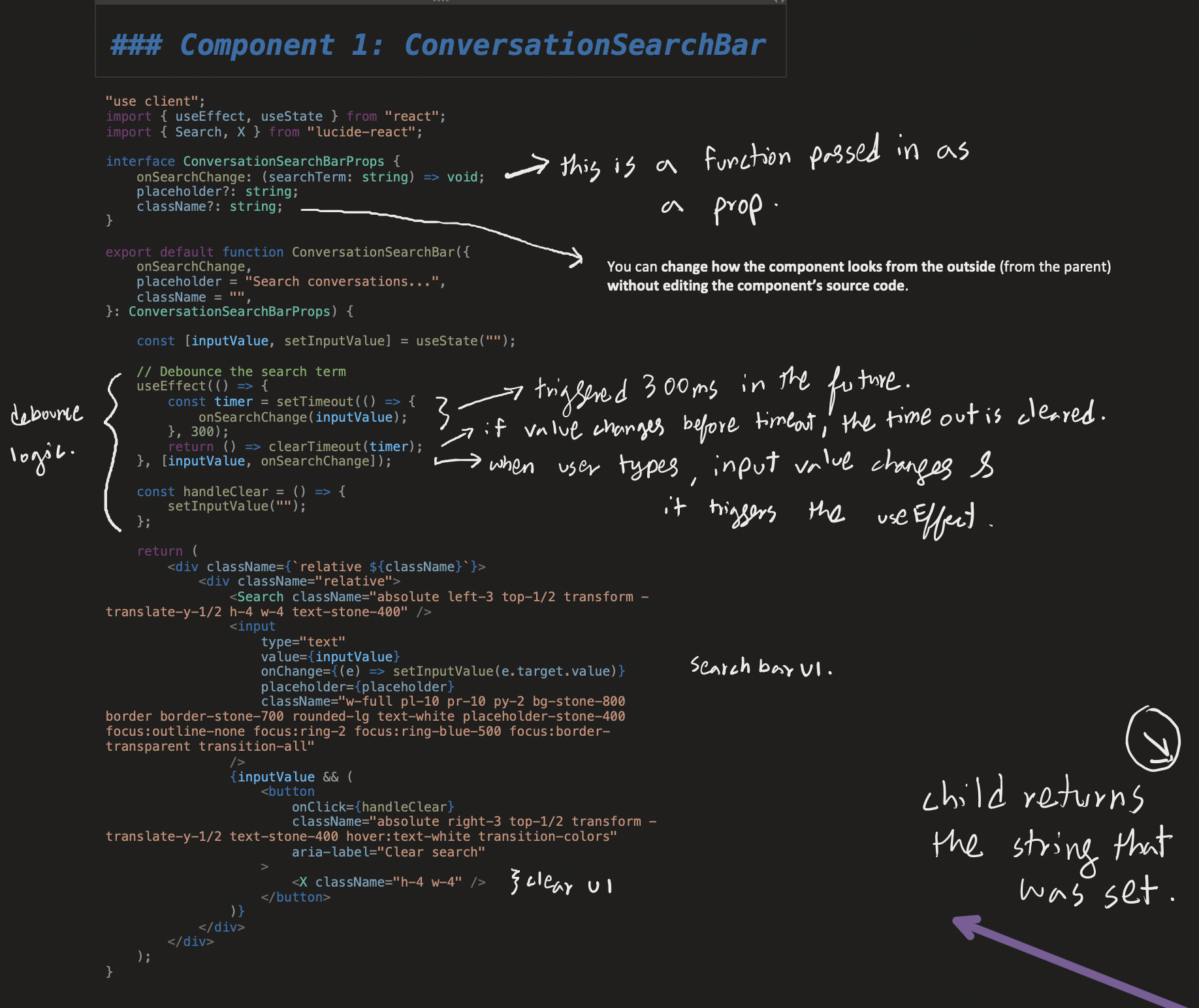
File: webapp/frontend/components/emails/ConversationSearchBar.tsx
Purpose and Responsibilities
The ConversationSearchBar is a controlled input component that serves as a reusable search interface. Its sole responsibility is to capture user input, debounce it, and notify parent components of search term changes.
Key Responsibilities:
- Render a styled search input field
- Display a search icon for visual clarity
- Show a clear button when text is present
- Debounce user input to optimize performance
- Emit search term changes via callback prop
What It Does NOT Do:
- Does not know about conversations or emails
- Does not perform filtering logic
- Does not fetch data or make API calls
- Does not maintain search history
Component Interface
interface ConversationSearchBarProps {
  onSearchChange: (searchTerm: string) => void;  // Callback when search term changes
  placeholder?: string;                          // Optional placeholder text
  className?: string;                            // Optional additional CSS classes
}
Design Rationale:
-
onSearchChange: Required callback follows React's "data down, events up" pattern• Data flows down from parent → child via props
• Events flow up from child → parent via callback functions -
placeholder: Optional prop allows customization for different contexts -
className: Enables styling flexibility without modifying component internals• You can change how the component looks from the outside (from the parent) without editing the component’s source code.
Implementation Details
State Management
const [inputValue, setInputValue] = useState("");
Why local state?
- The component needs to track the immediate input value for the UI
- The debounced value (what gets emitted) is different from the immediate value
- This creates a "controlled component" pattern where React manages the input
Debouncing Logic
useEffect(() => {
  const timer = setTimeout(() => {
    onSearchChange(inputValue);
  }, 300);

  return () => clearTimeout(timer);
}, [inputValue, onSearchChange]);
How it works:
- Effect Trigger: Runs whenever
inputValuechanges - Timer Creation: Sets a 300ms timeout before calling
onSearchChange - Cleanup Function: If
inputValuechanges again before 300ms, the previous timer is cleared - Result:
onSearchChangeonly fires 300ms after the user stops typing
Why 300ms?
- Industry standard for search debouncing
- Imperceptible to users (feels instant)
- Significantly reduces re-renders (from potentially dozens to one per search)
Clear Functionality
const handleClear = () => {
  setInputValue("");
};
Behavior:
- Clears the local input state
- Triggers the
useEffectwhich will emit an empty string after 300ms - This causes the parent component to clear the filter
Why not call onSearchChange("") directly?
-
Maintains consistency: all search changes go through the debounce mechanism
-
Prevents potential race conditions
If we call onSearchChange("") immediately inside handleClear, we would now have:
• One immediate update
• One delayed update still pending in the timer (because useEffect is called)This creates a race condition where the delayed update might override the immediate update.
(Two asynchronous actions are competing to update the same state, and the one that finishes last wins — even if it’s outdated) \ -
Simpler mental model: state change → effect → callback
UI Structure
<div className="relative">
  <Search className="absolute left-3 top-1/2 transform -translate-y-1/2" />
  <input
    type="text"
    value={inputValue}
    onChange={(e) => setInputValue(e.target.value)}
    placeholder={placeholder}
    className="w-full pl-10 pr-10 py-2 bg-stone-800 ..."
  />
  {inputValue && (
    <button onClick={handleClear} aria-label="Clear search">
      <X className="h-4 w-4" />
    </button>
  )}
</div>
Design Choices:
- Relative positioning: Allows absolute positioning of icons within the input
- Search icon: Left-aligned, provides visual affordance
- Padding:
pl-10andpr-10create space for icons - Conditional clear button: Only shows when there's text to clear
- ARIA label: Ensures accessibility for screen readers
Styling Philosophy
The component uses Tailwind CSS with a dark theme matching my application's design system:
- Background:
bg-stone-800- Dark input background - Border:
border-stone-700- Subtle border - Text:
text-whitewithplaceholder-stone-400for contrast - Focus State:
focus:ring-2 focus:ring-blue-500- Clear visual feedback - Transitions:
transition-all- Smooth state changes
Component 2: ConversationSidebar (Modified)
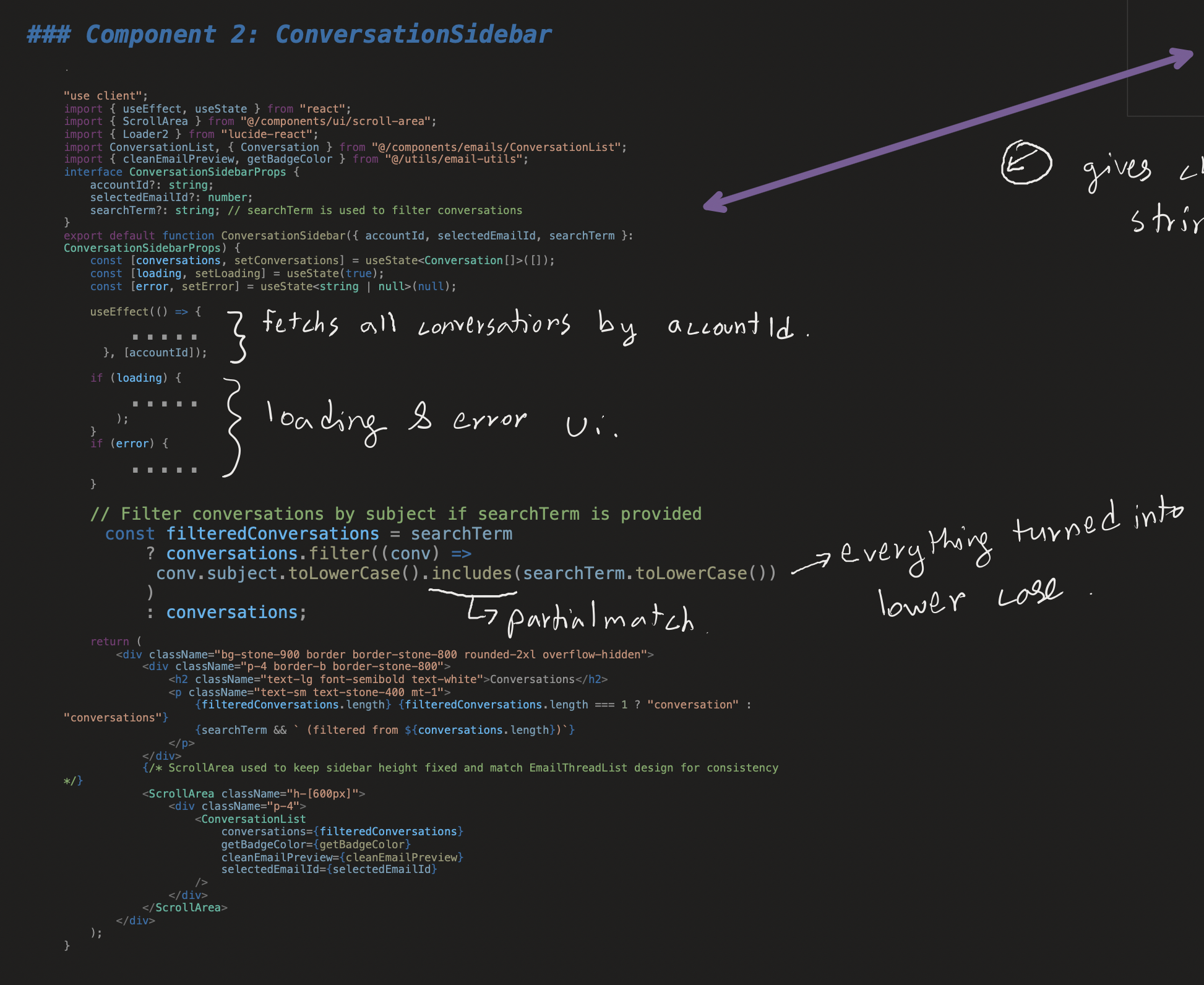
File: webapp/frontend/components/emails/ConversationSidebar.tsx
Changes Overview
The ConversationSidebar component was modified to accept an optional searchTerm prop and implement client-side filtering logic.
Interface Update
Before:
interface ConversationSidebarProps {
  accountId?: string;
  selectedEmailId?: number;
}
After:
interface ConversationSidebarProps {
  accountId?: string;
  selectedEmailId?: number;
  searchTerm?: string;  // NEW: Optional search filter
}
Why optional?
- Maintains backward compatibility with existing usages
- Component works without search functionality
- Follows the principle of progressive enhancement
Function Signature Update
Before:
export default function ConversationSidebar({ accountId, selectedEmailId }: ConversationSidebarProps)
After:
export default function ConversationSidebar({ accountId, selectedEmailId, searchTerm }: ConversationSidebarProps)
Simple change, but critical: Destructuring the new prop makes it available throughout the component.
Filtering Logic Implementation
Added code:
// Filter conversations by subject if searchTerm is provided
const filteredConversations = searchTerm
  ? conversations.filter((conv) =>
      conv.subject.toLowerCase().includes(searchTerm.toLowerCase())
    )
  : conversations;
Detailed Explanation:
-
Conditional Filtering:
- If
searchTermexists (truthy), apply filter - If
searchTermis empty/undefined, return all conversations - This ensures the component works correctly with or without search
- If
-
Filter Logic:
conversations.filter()creates a new array with matching items- Does not mutate the original
conversationsarray (React best practice)
-
Case-Insensitive Matching:
.toLowerCase()on both subject and searchTerm- Ensures "Test" matches "test", "TEST", "TeSt", etc.
- Better user experience: users don't need to remember exact casing
-
Substring Matching:
.includes()allows partial matches- "meeting" matches "Team Meeting Notes", "meeting agenda", etc.
- More flexible than exact matching
Performance Consideration:
-
filter()is O(n) where n = number of conversationsClient-side filtering runs in O(n) time because the filter() method scans each conversation exactly once, so the number of checks grows linearly with the size of the list (e.g., 100 items ≈ 100 checks, 1,000 items ≈ 1,000 checks). Although includes() is also linear in string length, subject lines are short, making the number of conversations the dominant cost. In practice, performance remains excellent for typical sizes because JavaScript engines are highly optimized and can process millions of operations per second—about 1ms for 100 items and 10ms for 1,000 items, which is imperceptible to users. Noticeable lag usually appears only at several thousand items, which is why client-side filtering is considered safe up to around 1,000 conversations for real-time use.
-
toLowerCase()is called twice per conversation -
For typical conversation counts (< 1000), this is negligible
-
If scaling becomes an issue, could memoize with
useMemo
Performance
Client-side filtering is O(n) where n = number of conversations. Performance is excellent for typical use cases (100 conversations ~1ms, 1,000 conversations ~10ms). Debouncing prevents excessive re-renders.
Can migrate to server-side search if conversation count exceeds ~1,000. ⚠️
UI Updates for Filtered Display
Before:
<p className="text-sm text-stone-400 mt-1">
  {conversations.length} {conversations.length === 1 ? "conversation" : "conversations"}
</p>
After:
<p className="text-sm text-stone-400 mt-1">
  {filteredConversations.length} {filteredConversations.length === 1 ? "conversation" : "conversations"}
  {searchTerm && ` (filtered from ${conversations.length})`}
</p>
Why this change?
- Accurate Count: Shows the number of visible conversations, not total
- Context Awareness: When filtering, shows "5 conversations (filtered from 20)"
- User Feedback: Immediately communicates the effect of the search
- Conditional Display: Only shows "filtered from" text when actually filtering
Example outputs:
- No search: "20 conversations"
- Search with results: "5 conversations (filtered from 20)"
- Search with no results: "0 conversations (filtered from 20)"
- Search with all results: "20 conversations (filtered from 20)"
Passing Filtered Data to Child Component
Before:
<ConversationList
  conversations={conversations}
  getBadgeColor={getBadgeColor}
  cleanEmailPreview={cleanEmailPreview}
  selectedEmailId={selectedEmailId}
/>
After:
<ConversationList
  conversations={filteredConversations}  // Changed from conversations
  getBadgeColor={getBadgeColor}
  cleanEmailPreview={cleanEmailPreview}
  selectedEmailId={selectedEmailId}
/>
Critical Change:
ConversationListnow receives the filtered array instead of the full arrayConversationListcomponent remains unchanged - it doesn't know about filtering- This maintains separation of concerns: filtering logic lives in the sidebar, rendering logic lives in the list
Why this is good architecture:
ConversationListis a "dumb" presentational component- It simply renders whatever data it receives
- Makes it easier to test and reuse
- Filtering logic is centralized in one place
Component 3: EmailDetailPage (Converted and Enhanced)
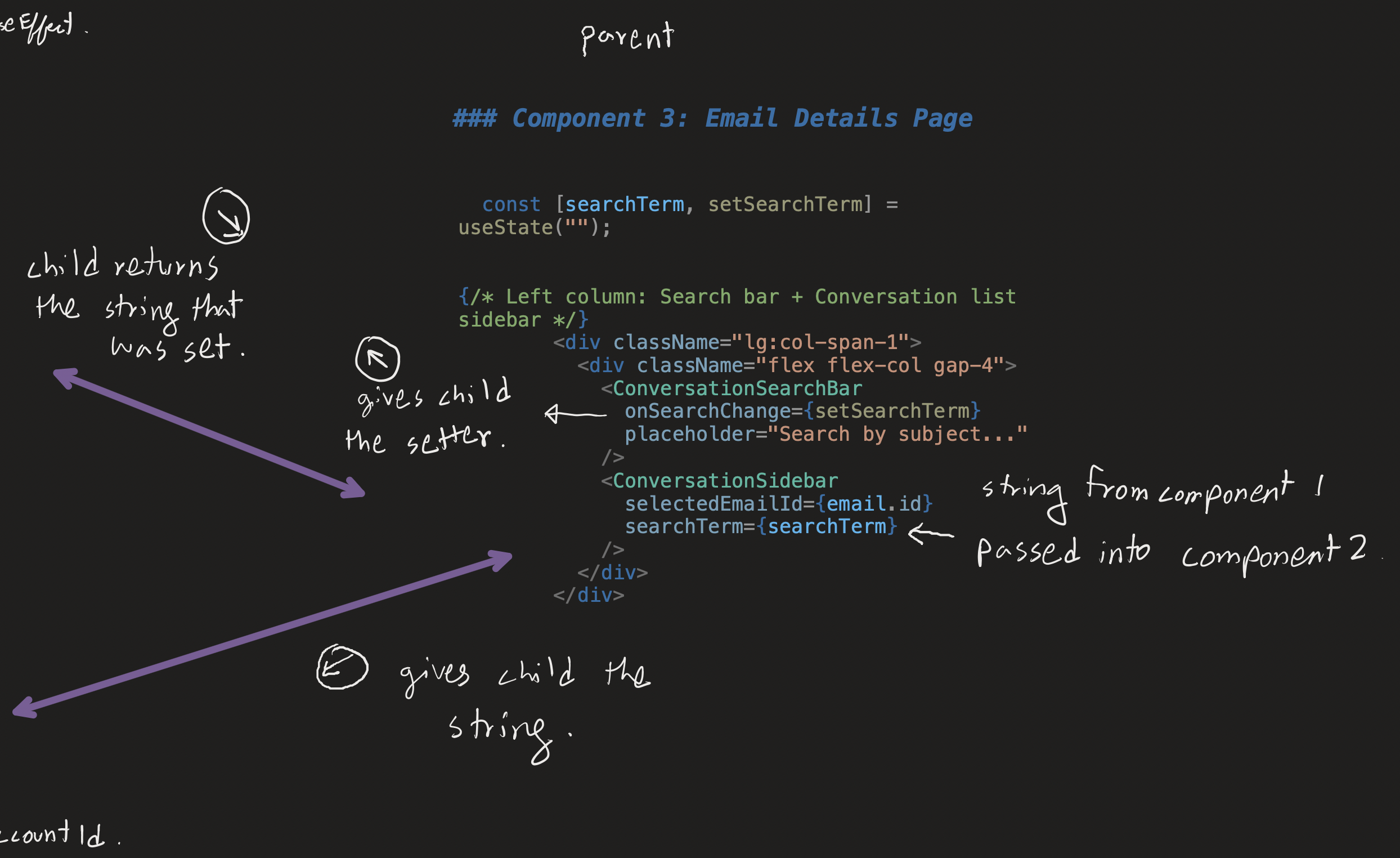
File: webapp/frontend/app/emails/[id]/page.tsx
This component underwent the most significant changes, converting from a Next.js Server Component to a Client Component and integrating the search functionality.
Conversion: Server Component → Client Component
Before: Server Component Pattern
export default async function EmailDetailPage({
  params,
}: {
  params: Promise<{ id: string }>;
}) {
  const { id } = await params;

  const emailRes = await fetch(`http://localhost:8000/api/emails/${id}`, {
    cache: "no-store",
  });

  if (!emailRes.ok) {
    return <div>Email not found.</div>;
  }

  const email: Email = await emailRes.json();

  return <div>...</div>;
}
Server Component Characteristics:
asyncfunction component- Direct
awaitof promises - Server-side data fetching
- No client-side state
- No interactivity
After: Client Component Pattern
"use client";

import { useEffect, useState } from "react";
import { useParams } from "next/navigation";

export default function EmailDetailPage() {
  const params = useParams();
  const id = params.id as string;

  const [email, setEmail] = useState<Email | null>(null);
  const [loading, setLoading] = useState(true);
  const [error, setError] = useState<string | null>(null);
  const [searchTerm, setSearchTerm] = useState("");

  useEffect(() => {
    async function fetchEmail() {
      try {
        const emailRes = await fetch(`http://localhost:8000/api/emails/${id}`, {
          cache: "no-store",
        });

        if (!emailRes.ok) {
          throw new Error("Email not found");
        }

        const data: Email = await emailRes.json();
        setEmail(data);
      } catch (err: any) {
        setError(err.message || "Failed to fetch email");
      } finally {
        setLoading(false);
      }
    }

    fetchEmail();
  }, [id]);

  // ... render logic
}
Client Component Characteristics:
"use client"directive at the top- Uses React hooks (
useState,useEffect,useParams) - Client-side data fetching in
useEffect - State management for data, loading, and errors
- Supports interactivity
Why This Conversion Was Necessary
- State Requirement: Search functionality requires
useStateforsearchTerm - React Hooks: Hooks only work in Client Components
- Interactivity: Search is inherently interactive
- Next.js Architecture: Server Components can't have client-side state
New Imports
"use client";

import { useEffect, useState } from "react";
import { useParams } from "next/navigation";
import Link from "next/link";
import ClassifyIsland from "./ClassifyIsland";
import { EmailThreadList } from "@/components/emails/EmailThreadList_v2";
import ConversationSidebar from "@/components/emails/ConversationSidebar";
import ConversationSearchBar from "@/components/emails/ConversationSearchBar";  // NEW
import { Loader2 } from "lucide-react";  // NEW
New imports explained:
"use client": Directive telling Next.js this is a Client ComponentuseEffect, useState: React hooks for state and side effectsuseParams: Next.js hook to access route parametersConversationSearchBar: Our new search componentLoader2: Loading spinner icon from lucide-react
State Management
const [email, setEmail] = useState<Email | null>(null);
const [loading, setLoading] = useState(true);
const [error, setError] = useState<string | null>(null);
const [searchTerm, setSearchTerm] = useState("");
Four pieces of state:
-
email: The fetched email data- Type:
Email | null(null before data loads) - Initial value:
null - Updated when fetch succeeds
- Type:
-
loading: Loading state indicator- Type:
boolean - Initial value:
true(starts loading immediately) - Set to
falseinfinallyblock (whether success or error)
- Type:
-
error: Error message if fetch fails- Type:
string | null - Initial value:
null(no error initially) - Updated in
catchblock if fetch fails
- Type:
-
searchTerm: Current search filter text- Type:
string - Initial value:
""(empty, no filtering) - Updated by
ConversationSearchBarcallback
- Type:
Data Fetching with useEffect
useEffect(() => {
  async function fetchEmail() {
    try {
      const emailRes = await fetch(`http://localhost:8000/api/emails/${id}`, {
        cache: "no-store",
      });

      if (!emailRes.ok) {
        throw new Error("Email not found");
      }

      const data: Email = await emailRes.json();
      setEmail(data);
    } catch (err: any) {
      console.error(err);
      setError(err.message || "Failed to fetch email");
    } finally {
      setLoading(false);
    }
  }

  fetchEmail();
}, [id]);
Detailed Breakdown:
-
useEffectHook:- Runs after component mounts
- Re-runs if
idchanges (dependency array:[id]) - Perfect for data fetching in Client Components
-
Async Function Inside Effect:
- Can't make
useEffectcallback itself async - Solution: Define async function inside, call it immediately
- Common pattern in React
- Can't make
-
Try-Catch-Finally:
- Try: Attempt to fetch and parse data
- Catch: Handle any errors (network, parsing, etc.)
- Finally: Always set loading to false (runs regardless of success/failure)
-
Error Handling:
- Checks
!emailRes.okfor HTTP errors - Throws error to be caught by catch block
- Stores error message in state for display
- Checks
-
State Updates:
setEmail(data)on successsetError(...)on failuresetLoading(false)always runs
Loading State UI
if (loading) {
  return (
    <div className="min-h-screen bg-black p-6 text-stone-400">
      <Link href="/emails" className="text-stone-400 hover:text-stone-200">
        ← Back to Inbox
      </Link>
      <div className="flex items-center justify-center py-16">
        <Loader2 className="h-8 w-8 animate-spin text-stone-400" />
      </div>
    </div>
  );
}
Why this matters:
- Provides immediate visual feedback
- Prevents rendering with null data
- Better UX than blank screen
- Spinner indicates active loading
Error State UI
if (error || !email) {
  return (
    <div className="min-h-screen bg-black p-6 text-stone-400">
      <Link href="/emails" className="text-stone-400 hover:text-stone-200">
        ← Back to Inbox
      </Link>
      <p className="mt-6 text-red-400">{error || "Email not found."}</p>
    </div>
  );
}
Error handling strategy:
- Checks both
errorstate and!email(defensive programming) - Displays specific error message if available
- Falls back to generic message
- Maintains navigation (back button still works)
Search Integration in Layout
<div className="grid grid-cols-1 lg:grid-cols-2 gap-6">
  {/* Left column: Search bar + Conversation list sidebar */}
  <div className="lg:col-span-1">
    <div className="flex flex-col gap-4">
      <ConversationSearchBar
        onSearchChange={setSearchTerm}
        placeholder="Search by subject..."
      />
      <ConversationSidebar
        selectedEmailId={email.id}
        searchTerm={searchTerm}
      />
    </div>
  </div>

  {/* Right column: Email detail */}
  <div className="lg:col-span-1">
    {/* ... email content ... */}
  </div>
</div>
Layout structure explained:
-
Flex Column Container:
<div className="flex flex-col gap-4">- Stacks search bar and sidebar vertically
gap-4provides spacing between them- Keeps them visually grouped
-
Search Bar Integration:
<ConversationSearchBar onSearchChange={setSearchTerm} placeholder="Search by subject..." />onSearchChange={setSearchTerm}: Directly passes the state setter- When search bar emits a new term, it updates the page's state
- This triggers a re-render with the new
searchTerm
-
Sidebar Integration:
<ConversationSidebar selectedEmailId={email.id} searchTerm={searchTerm} />- Receives the current
searchTermfrom page state - Re-renders when
searchTermchanges - Applies filtering based on the term
- Receives the current
Data flow in action:
- User types "meeting" in search bar
- After 300ms debounce,
onSearchChange("meeting")fires setSearchTerm("meeting")updates page state- Page re-renders with new
searchTerm ConversationSidebarreceivessearchTerm="meeting"- Sidebar filters conversations where subject includes "meeting"
- Filtered list renders
Code Changes Analysis
Summary of Files Modified
- Created:
webapp/frontend/components/emails/ConversationSearchBar.tsx(61 lines) - Modified:
webapp/frontend/components/emails/ConversationSidebar.tsx(8 lines changed) - Modified:
webapp/frontend/app/emails/[id]/page.tsx(complete refactor, ~140 lines)
Complexity Analysis
ConversationSearchBar: Low-Medium Complexity
- Single responsibility (input handling)
- Standard React patterns (useState, useEffect)
- No external dependencies beyond UI libraries
- Easy to test and maintain
ConversationSidebar: Low Complexity Changes
- Simple prop addition
- Straightforward filtering logic
- No breaking changes to existing functionality
- Backward compatible
EmailDetailPage: Medium-High Complexity
- Significant architectural change (Server → Client)
- Multiple state variables to manage
- Async data fetching with error handling
- Loading and error states
- More complex than original but more flexible
Design Patterns Applied
1. Controlled Component Pattern
Applied in: ConversationSearchBar
const [inputValue, setInputValue] = useState("");

<input
  value={inputValue}
  onChange={(e) => setInputValue(e.target.value)}
/>
Benefits:
- React state is the single source of truth
- Predictable behavior
- Easy to manipulate programmatically (e.g., clear button)
- Enables validation and transformation
2. Presentational vs. Container Components
Presentational: ConversationSearchBar, ConversationList
- Focus on how things look
- Receive data via props
- Emit events via callbacks
- No business logic
Container: EmailDetailPage, ConversationSidebar
- Focus on how things work
- Manage state
- Fetch data
- Contain business logic
Benefits:
- Clear separation of concerns
- Easier testing
- Better reusability
- Simpler debugging
3. Callback Props Pattern
Applied in: ConversationSearchBar
interface ConversationSearchBarProps {
  onSearchChange: (searchTerm: string) => void;
}

// Usage
<ConversationSearchBar onSearchChange={setSearchTerm} />
Benefits:
- Inverts control (parent decides what to do with data)
- Enables reusability (different parents can handle differently)
- Follows React's unidirectional data flow
- Type-safe with TypeScript
4. Debouncing Pattern
Applied in: ConversationSearchBar
useEffect(() => {
  const timer = setTimeout(() => {
    onSearchChange(inputValue);
  }, 300);
  return () => clearTimeout(timer);
}, [inputValue, onSearchChange]);
Benefits:
- Reduces unnecessary computations
- Improves performance
- Better user experience
- Standard pattern for search inputs
5. Conditional Rendering Pattern
Applied in: EmailDetailPage
if (loading) return <LoadingUI />;
if (error) return <ErrorUI />;
return <MainUI />;
Benefits:
- Clear state management
- Prevents rendering with invalid data
- Better error handling
- Improved user experience
6. Composition Pattern
Applied in: EmailDetailPage layout
<div className="flex flex-col gap-4">
  <ConversationSearchBar {...props} />
  <ConversationSidebar {...props} />
</div>
Benefits:
- Flexible component arrangement
- Easy to modify layout
- Components remain independent
- Promotes reusability
Performance Considerations
1. Debouncing Impact
Without debouncing:
- User types "meeting" (7 characters)
- 7 state updates
- 7 re-renders of page
- 7 filter operations in sidebar
- 7 re-renders of conversation list
With 300ms debouncing:
- User types "meeting" (7 characters)
- 1 state update (after user stops typing)
- 1 re-render of page
- 1 filter operation in sidebar
- 1 re-render of conversation list
Performance gain: ~85% reduction in operations
2. Client-Side Filtering Performance
Current approach: O(n) where n = number of conversations
For typical usage:
- 100 conversations: ~1ms filtering time
- 1,000 conversations: ~10ms filtering time
- 10,000 conversations: ~100ms filtering time (noticeable lag)
Optimization opportunities (if needed):
- Memoize filtered results with
useMemo - Implement virtual scrolling for large lists
- Switch to server-side filtering for large datasets
- Add indexing/search optimization
3. Memory Considerations
Current memory usage:
- Original conversations array: ~10KB (for 100 conversations)
- Filtered conversations array: ~10KB (worst case, same size)
- Search term state: negligible
- Input value state: negligible
Total additional memory: ~10KB (negligible)
No memory leaks:
useEffectcleanup properly clears timers- No dangling event listeners
- No circular references
Future Enhancements
1. Multi-Field Search
Current: Search by subject only
Enhancement: Search across multiple fields
Benefits:
- More powerful search
- Better user experience
- Finds emails user might not remember exact subject
2. Advanced Filters
Enhancement: Add filter dropdowns for classification, date range, account
3. Search History
Enhancement: Remember recent searches
Benefits:
- Faster repeat searches
- Better UX for common queries
- Discoverable feature
4. Server-Side Search
When to implement: When conversation count exceeds ~1,000
Benefits:
- Handles large datasets
- Can use database indexing
- Reduces client-side memory usage
Trade-offs:
- Network latency
- Server load
- More complex implementation
5. Search Analytics
Enhancement: Track what users search for
Use cases:
- Identify common search patterns
- Improve auto-categorization
- Suggest filters based on usage
Lessons Learned
1. Component Independence is Powerful
Lesson: Creating ConversationSearchBar as an independent component made it trivial to integrate and will make it easy to reuse.
Application: Always consider if a UI element could be useful elsewhere before tightly coupling it to a specific parent.
2. Debouncing is Essential for Search
Lesson: Without debouncing, search inputs cause performance issues and poor UX.
Application: Always debounce user input that triggers expensive operations (filtering, API calls, etc.).
3. Server vs. Client Components Require Careful Consideration
Lesson: Converting from Server to Client Component was necessary but came with trade-offs (SEO, initial load time).
Application: Start with Server Components when possible, convert to Client only when interactivity is required.
4. Separation of Concerns Simplifies Testing
Lesson: ConversationSearchBar can be tested independently of filtering logic.
Application: Keep components focused on one responsibility to make testing easier.
5. Client-Side Filtering is Often Sufficient
Lesson: Despite the temptation to implement server-side search, client-side filtering works perfectly for current scale.
Application: Don't over-engineer. Implement the simplest solution that meets requirements, optimize later if needed.
Conclusion
This implementation demonstrates professional React development practices:
- Component Design: Created reusable, focused components with clear responsibilities
- Performance: Implemented debouncing to optimize rendering and user experience
- Architecture: Properly converted Server Component to Client Component when needed
- Type Safety: Leveraged TypeScript for robust, maintainable code
- User Experience: Provided immediate feedback and intuitive interactions
- Maintainability: Clean separation of concerns makes future changes easy
- Scalability: Architecture supports future enhancements without major refactoring
The search feature is production-ready, well-architected, and serves as a solid foundation for future enhancements like multi-field search, advanced filters, and server-side search when needed.
Key Takeaway: Sometimes the best solution is the simplest one that meets requirements. Client-side filtering with debouncing provides excellent UX for typical use cases, and the component architecture makes it trivial to upgrade to server-side search if the need arises.